
Image → WebP
Make your images lighter
Upload JPG or PNG files and this tool converts them straight to WebP, right in your browser — nothing is uploaded to a server, everything happens on this device. Your website ends up lighter and faster.
How to Use an Image to WEBP Converter: A Complete Step-by-Step Guide
Introduction
Images play a crucial role in today’s digital world. Whether you’re building a website, managing an online store, publishing blog posts, or sharing photos on social media, high-quality images help attract visitors and improve user engagement. However, large image files can slow down websites, increase storage usage, and consume more bandwidth.
This is where an Image to WEBP Converter becomes incredibly useful. It allows you to convert popular image formats like JPG, JPEG, and PNG into the modern WEBP format. WEBP provides excellent image quality while significantly reducing file size, making it one of the best formats for websites and web applications.
Most online image-to-WEBP converters work directly in your web browser, allowing you to upload your images, convert them within seconds, and download the optimized WEBP files without installing additional software.
In this guide, you’ll learn what an Image to WEBP Converter is, how it works, why WEBP has become so popular, and how it can improve your website’s performance and user experience.
What Is an Image-to-WEBP Converter?
An image-to-WEBP converter is an online tool that converts various image formats into Google’s WEBP image format.
Instead of keeping larger image files, the converter creates optimized WEBP images that maintain excellent visual quality while reducing the overall file size.
Most image-to-WEBP converters support popular formats such as:
- JPG
- JPEG
- PNG
- WEBP conversion from multiple image formats
After conversion, the resulting WEBP images are ready to use on websites, blogs, eCommerce stores, mobile apps, or personal projects.
What Is the WEBP Format?
WEBP is a modern image format developed by Google to provide better image compression than traditional formats like JPG and PNG.
The goal of WEBP is simple:
- Smaller file sizes
- Faster website loading
- High image quality
- Better web performance
Unlike older image formats, WEBP supports both lossy and lossless compression, giving users greater flexibility depending on their needs.
It also supports:
- Transparent backgrounds (like PNG)
- Animation (similar to GIF)
- High-quality photographs
- Graphics and illustrations
Because of these features, WEBP has become one of the preferred image formats for modern websites.
Why Convert Images to WEBP?
Converting images to WEBP offers several important advantages.
Smaller File Size
One of WEBP’s biggest benefits is its efficient compression.
Compared to JPG and PNG, WEBP images are often significantly smaller while maintaining impressive visual quality.
Smaller files mean:
- Faster uploads
- Faster downloads
- Reduced storage usage
- Lower bandwidth consumption
Faster Website Loading
Website speed directly affects user experience.
Large images are one of the main reasons websites load slowly.
Using WEBP images helps pages load more quickly, which benefits both visitors and website owners.
Faster websites often experience:
- Lower bounce rates
- Better user engagement
- Improved browsing experience
- Quicker page rendering
Better SEO Performance
Website speed is an important factor in search engine optimization (SEO).
Optimized WEBP images can contribute to:
- Faster Core Web Vitals
- Improved page performance
- Better mobile experience
- More efficient crawling by search engines
Although images alone won’t guarantee higher rankings, optimizing them is considered an SEO best practice.
Excellent Image Quality
Many people assume that smaller file sizes mean lower quality.
Fortunately, WEBP delivers excellent visual quality while significantly reducing file size.
This makes it suitable for:
- Product photos
- Blog images
- Website banners
- Portfolio galleries
- Social media graphics
- Marketing materials
Common Uses of an Image to WEBP Converter
An Image to WEBP Converter is useful in many different situations.
Website Owners
Website owners convert images to WEBP to improve page speed and create a better browsing experience for visitors.
Bloggers
Bloggers often optimize featured images and article graphics to make their websites load faster while maintaining image quality.
eCommerce Businesses
Online stores typically contain hundreds or even thousands of product images.
Converting product photos to WEBP helps reduce loading times and improves shopping performance.
Web Developers
Developers frequently use WEBP images when building modern websites because they offer an excellent balance between quality and file size.
Graphic Designers
Designers can convert exported graphics into WEBP before publishing them online, helping reduce file sizes without noticeably affecting image quality.
Digital Marketers
Marketing professionals often optimize advertising creatives, landing page graphics, and promotional banners using WEBP to improve campaign performance and website speed.
Features of a Modern Image to WEBP Converter
Most browser-based image-to-WEBP converters include several useful features.
Support for Multiple Formats
Convert images from:
- JPG
- JPEG
- PNG
into WEBP with just a few clicks.
Batch Conversion
Many tools allow you to upload and convert multiple images simultaneously, saving time when working with large image collections.
High-Quality Output
Modern converters preserve image clarity while reducing file size, making them suitable for both personal and professional use.
Fast Processing
Most conversions are completed within seconds, even when multiple images are uploaded.
Browser-Based Convenience
Many image-to-WEBP converters work entirely online, so you don’t need to install additional software or plugins.
Mobile Compatibility
You can convert images from almost any device, including:
- Windows PCs
- Mac computers
- Android smartphones
- iPhones
- Tablets
- Linux systems
Easy Download
After conversion, download your optimized WEBP images and use them immediately on your website or in your projects.
Why Choose an Online Image to WEBP Converter?
Online Image to WEBP converters are ideal because they combine convenience, speed, and accessibility.
Instead of installing specialized image editing software, you can open the tool in your browser, upload your images, convert them to WEBP, and download the results in just a few clicks.
This makes it an excellent choice for beginners, bloggers, developers, business owners, students, and anyone who wants a quick and efficient way to optimize images for the web.
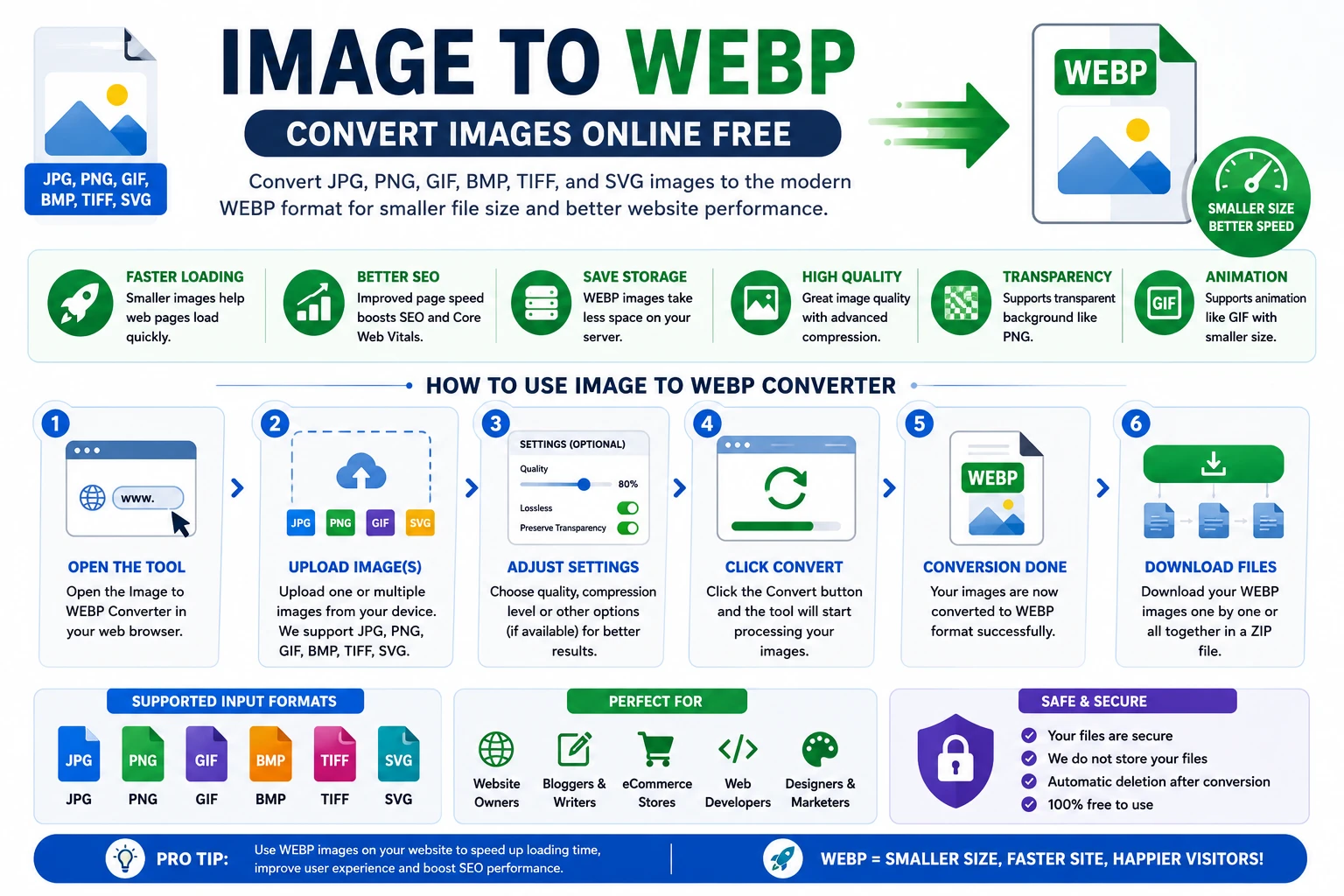
How to Use an Image to WEBP Converter: A Complete Step-by-Step Guide
How to Use an Image to WEBP Converter
Converting your images to the WEBP format is simple and only takes a few minutes. Most online converters are designed with an easy-to-use interface, allowing anyone to optimize images without technical knowledge.
Whether you’re converting a single photo or multiple images, the process is almost the same across most browser-based tools.
Follow these steps to convert your images successfully.
Step 1: Open the Image to WEBP Converter
Start by opening the Image to WEBP Converter in your web browser.
Most online tools work on:
- Windows
- macOS
- Linux
- Android
- iPhone
- Tablets
Since everything runs online, there’s usually no need to install additional software.
Step 2: Upload Your Image
Click the Upload Image button.
Select one or multiple files from your device.
Most converters support popular image formats, including:
- JPG
- JPEG
- PNG
Some tools also allow you to drag and drop files directly into the upload area for faster processing.
Step 3: Adjust Conversion Settings (Optional)
Depending on the converter you’re using, you may see optional settings such as:
- Image quality
- Compression level
- Lossy or lossless conversion
- Preserve transparency
- Resize image dimensions
- Maintain original resolution
If you’re unsure which settings to choose, the default options usually provide an excellent balance between image quality and file size.
Step 4: Click the Convert Button
After uploading your images and adjusting any optional settings, click the Convert button.
The tool will process your images and generate optimized WEBP files.
Most conversions finish within a few seconds.
The exact processing time depends on:
- Image size
- Number of uploaded files
- Internet speed (for online tools)
- Device performance
Step 5: Download Your WEBP Images
Once the conversion is complete, click the Download button.
If you’ve converted multiple images, some tools also provide a Download ZIP option, allowing you to download all converted WEBP files at once.
Save the files to your preferred folder, and they’re ready to use.
Practical Example
Imagine you own a blog and your homepage contains several high-resolution JPG images.
Before optimization:
- Homepage size: 12 MB
- Loading time: 6–8 seconds
After converting the images to WEBP:
- Homepage size: 5 MB
- Faster page loading
- Better browsing experience
- Reduced bandwidth usage
The visual quality remains almost identical, but your website performs much better.
Benefits of Using an Image to WEBP Converter
Converting images to WEBP provides many practical advantages.
Faster Website Performance
Large images are one of the biggest reasons websites load slowly.
WEBP significantly reduces image size, allowing pages to load faster.
This creates a smoother browsing experience for visitors.
Improved User Experience
Visitors are more likely to stay on websites that load quickly.
Faster images help users:
- Browse comfortably
- View products faster
- Read articles without delays.
- Enjoy smoother navigation
Reduced Storage Space
Smaller image files require less storage.
This is especially useful if you manage:
- Large photo galleries
- Online stores
- News websites
- Portfolio websites
- Media libraries
Less storage also makes backups faster and easier.
Lower Bandwidth Usage
Every image downloaded by visitors uses bandwidth.
WEBP images reduce bandwidth consumption, which may help lower hosting costs and improve website performance during periods of high traffic.
Better Mobile Performance
Many visitors browse websites using smartphones.
Because mobile networks can be slower than desktop connections, smaller WEBP images help pages load more quickly on mobile devices.
Supports Transparency
Unlike JPG, WEBP supports transparent backgrounds.
This makes it an excellent alternative to PNG for:
- Company logos
- Website icons
- Graphics
- Product cutouts
- Illustrations
Supports Animation
WEBP can also replace animated GIFs.
Animated WEBP files are often significantly smaller while maintaining smooth animation quality.
Best Practices for Better Results
To get the best possible results when converting images to WEBP, follow these recommendations.
Start with High-Quality Images
The quality of your WEBP file depends on the original image.
Always begin with the highest-quality version available.
Avoid Excessive Compression
Very high compression may reduce image quality.
Choose balanced compression settings that reduce file size without introducing noticeable visual artifacts.
Keep Original Copies
Before converting, save the original JPG or PNG images.
This allows you to create new versions later if needed.
Optimize Before Uploading
Convert your images to WEBP before uploading them to your website.
This helps reduce loading times from the moment the images are published.
Test Your Website
After replacing images with WEBP versions, check:
- Image quality
- Loading speed
- Mobile responsiveness
- Browser compatibility
Everything should display correctly across different devices.
Common Mistakes to Avoid
Many beginners make small mistakes during image optimization.
Here are some of the most common ones.
Using Low-Quality Source Images
Converting a blurry image won’t improve its quality.
Always start with clear, high-resolution originals.
Applying Maximum Compression
Choosing the lowest possible quality may save space but can noticeably reduce image clarity.
Moderate compression usually provides the best balance.
Forgetting to Check Transparency
If your image requires a transparent background, ensure the converter preserves transparency during conversion.
Ignoring Browser Compatibility
Most modern browsers support WEBP, but if your audience uses older software, consider providing fallback image formats when necessary.
Replacing Every Image Without Testing
Before converting an entire website, test a few images first.
Compare:
- Quality
- File size
- Loading speed
- Overall appearance
This helps ensure the new format meets your expectations.
How to Use an Image to WEBP Converter: A Complete Step-by-Step Guide
Is an Image to WEBP Converter Safe to Use?
When converting images online, privacy and security are common concerns. Many users upload personal photos, business graphics, product images, or website assets, so it’s important to know how your files are handled.
Many modern image-to-WEBP converters process files directly within your web browser. This means your images are converted locally on your device instead of being permanently stored on external servers.
When selecting an online converter, look for features such as:
- Browser-based processing whenever possible
- Secure HTTPS encryption
- No mandatory account registration
- Automatic deletion of uploaded files (if server processing is used)
- Fast and reliable conversion
If you’re converting confidential or sensitive images, always use a trusted converter and review its Privacy Policy before uploading your files.
Who Should Use an Image-to-WEBP Converter?
An image-to-WEBP converter is useful for anyone who works with digital images.
Website Owners
Website owners can optimize website performance by converting banners, featured images, and gallery photos into WEBP format.
Bloggers
Bloggers often convert article images into WEBP to improve page loading speed and provide a better user experience.
eCommerce Businesses
Online stores usually contain hundreds or even thousands of product images.
WEBP helps reduce image size while maintaining excellent product quality, resulting in faster shopping experiences.
Web Developers
Developers use WEBP images to create faster websites that consume less bandwidth and improve overall performance.
Graphic Designers
Designers convert exported artwork into WEBP before publishing online to reduce file size without noticeably affecting image quality.
Digital Marketers
Marketing professionals optimize landing page graphics, promotional banners, advertisements, and social media visuals using WEBP to improve loading speed.
Advantages of Using an Image to WEBP Converter
Using an Image to WEBP Converter offers several practical advantages.
Smaller File Sizes
WEBP uses advanced compression techniques that significantly reduce image size while maintaining excellent visual quality.
Faster Website Loading
Smaller images help web pages load more quickly, improving the browsing experience for visitors.
Better User Experience
Fast-loading pages keep visitors engaged and reduce waiting times, especially on slower internet connections.
Saves Storage Space
Smaller image files require less storage on your computer, cloud storage, or web hosting account.
Reduces Bandwidth Usage
Optimized WEBP images consume less bandwidth, making them ideal for websites with high traffic.
Excellent Image Quality
WEBP maintains sharp details and vibrant colors while reducing overall file size.
Supports Transparency
Like PNG, WEBP supports transparent backgrounds, making it perfect for:
- Company logos
- Website icons
- Product images
- Digital graphics
Supports Animation
WEBP can also replace animated GIF files while producing much smaller file sizes.
Common Problems and Solutions
Although converting images to WEBP is usually straightforward, you may occasionally encounter minor issues.
Converted Image Looks Blurry
Cause: The original image has low resolution or excessive compression was selected.
Solution: Use a higher-quality source image and choose moderate compression settings.
File Size Didn’t Reduce Much
Cause: The original image was already optimized.
Solution: Adjust the quality settings or use lossless compression if image quality is the priority.
Transparency Is Missing
Cause: The conversion settings didn’t preserve the transparent background.
Solution: Enable the transparency option before converting PNG images.
Browser Doesn’t Display WEBP
Cause: Very old browsers may not fully support WEBP images.
Solution: Use a fallback JPG or PNG version if compatibility with older browsers is required.
Images Won’t Upload
Cause: Unsupported file format or file size limitation.
Solution: Verify that your image is in a supported format and doesn’t exceed the maximum upload size.
Frequently Asked Questions (FAQs)
An Image to WEBP Converter is an online tool that converts image formats like JPG, PNG, GIF, BMP, TIFF, and SVG into the modern WEBP format.
WEBP usually provides smaller file sizes while maintaining similar or better image quality, making it an excellent choice for websites.
Yes. Most image-to-WEBP converters support PNG files and preserve transparency when possible.
Yes. WEBP supports transparency just like PNG.
Many image-to-WEBP converters offer batch conversion, allowing you to convert multiple images simultaneously.
No. Most online converters work directly in your web browser without requiring any downloads or installation.
Yes. Browser-based converters work on Android phones, iPhones, tablets, laptops, and desktop computers.
Many online image-to-WEBP converters are free to use, although some may offer premium features such as higher upload limits or advanced compression options.
Final Thoughts
An image-to-WEBP converter is an essential tool for anyone looking to optimize images for the modern web. By converting traditional image formats like JPG and PNG into WEBP, you can significantly reduce file sizes while preserving excellent image quality.
Whether you’re managing a personal blog, running an eCommerce store, building websites, or simply organizing digital images, WEBP offers a smart balance between performance and visual quality. Smaller files lead to faster page loading, reduced bandwidth usage, improved user experience, and more efficient storage.
With today’s browser-based image-to-WEBP converters, the entire process is quick and convenient. Upload your images, convert them in seconds, and download optimized WEBP files ready for use across your website or digital projects.
If improving website speed and image optimization is one of your goals, using an Image to WEBP Converter is a simple yet highly effective solution.